

What Is an MFA Fatigue Attack?
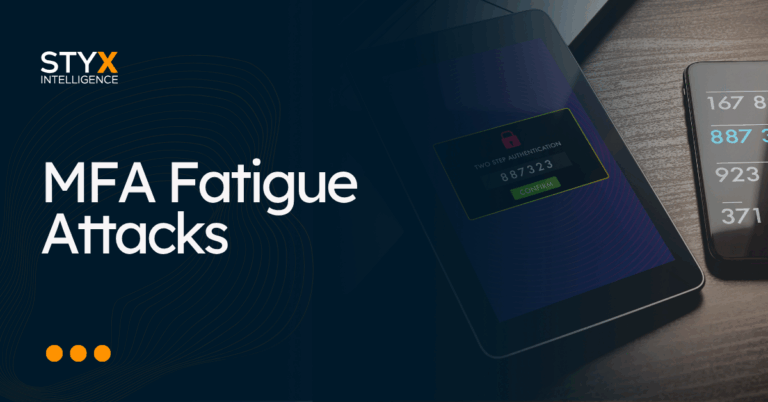
An MFA fatigue attack happens when an attacker keeps sending sign-in approval prompts to someone’s phone or authenticator app until they approve one.
You may also see it called:
- Push bombing
- MFA bombing
- Prompt bombing
- MFA push spam
At this point in the attack, the attacker usually already has your password. Now, they are just trying to get past the second step.
A normal MFA flow looks like this:
| Step | Normal login | MFA fatigue attack |
| 1 | You enter your password | Attacker enters your stolen password |
| 2 | You get one MFA prompt | You get repeated MFA prompts |
| 3 | You approve because you started it | Attacker hopes you approve by mistake or under pressure |
| 4 | You access the account | Attacker gets access as you |
One of the critical things about MFA fatigue is that it’s strongly connected to credential exposure.
Why is that?
The prompt is the visible part. The hidden part is the password that was already stolen, phished, reused, or pulled from an infected device.
This matters because many teams focus only on the prompt. However, the prompt usually appears after the first control has already failed.
Why Does MFA Fatigue Work When You Already Have MFA?
MFA fatigue works because push approvals are usually treated like routine tasks.
A person sees a prompt, taps approve, and moves on. That habit is what the attacker is counting on.
The attacker does not need the user to understand the full login event. They only need the user to think something like:
- “I probably triggered this earlier.”
- “Maybe this is from a work app.”
- “IT must be testing something.”
- “I just want these prompts to stop.”
That is why CISA describes mobile push bombardment as repeated MFA requests that may lead someone to approve because of confusion, annoyance, or fatigue.
There is also a timing problem.
A prompt can arrive while someone is in a meeting, half asleep, travelling, or switching between apps. In that moment, the person may not stop to ask, “Did I just try to log in?”
Attackers may also add a fake support message to make the request feel normal or important:
“You’ll see a login prompt now. Please approve it so we can finish the reset.”
So the failure is not that MFA is useless. MFA still blocks many password-based attacks. The issue is that push-based approval can depend too much on a person making the right decision under pressure.
That is why reducing prompt abuse matters. Controls like number matching help because they add friction before approval. However, the deeper question is still: why did the prompt appear at all?
In many cases, as already mentioned, the answer is exposed credentials. If your team only fixes the MFA setting, you may miss the password that started the attack.
What an Unexpected MFA Prompt Means for Security Teams
When a user gets an MFA prompt they did not start, the safest assumption is that someone may have entered a working password for that account.
That does not mean the account is fully compromised yet. However, it does mean the password may no longer be private.
For the user, the rule should be this: If you did not start the login, deny the request and report it.
For the security team, the prompt should trigger a quick check.
Here’s what to look at:
| What to check | Why it matters |
| Login location and device | Confirms whether the request came from an unusual place |
| Recent failed and successful sign-ins | Shows whether the attacker kept trying or got in |
| Active sessions | Finds access that may still be open |
| Password history and reuse | Helps assess whether the password may be exposed elsewhere |
| Recovery settings | Catches changes to email, phone, or backup methods |
| Credential exposure | Checks whether the user appears in breaches, stealer logs, or dumps |
This is also why user training should avoid vague advice like “be careful with MFA prompts.”
The instruction has to be specific: deny prompts you did not start, report them, and wait for IT or security to confirm the account is safe.
Example: How the Uber MFA Fatigue Attack Happened
The 2022 Uber breach is still a useful example because it shows the full chain clearly.
The attack did not begin with the MFA prompt, it began with a password.
According to Dark Reading’s report on Uber’s 2022 breach, Uber said the attacker compromised an external contractor’s credentials first, then used those credentials to try to access Uber’s systems.
MFA stopped the first login attempt.
However, the attacker kept sending approval requests. When the contractor did not approve them, the attacker added social pressure. Wired reported that the attacker sent repeated MFA requests and then contacted the employee on WhatsApp, urging them to approve the login.
The attack chain looked like this:
- The attacker got credentials that worked.
- The first login attempt triggered MFA.
- The user received repeated approval requests.
- The attacker contacted the user and pretended the approval was part of a support process.
- One approval gave the attacker access.
The breach was not just a story about someone approving the wrong prompt. It was a story about stolen credentials reaching the login page, MFA becoming the final barrier, and social pressure pushing the user to approve.
For security teams, the takeaway is that the earlier you find exposed credentials, the less likely your team is to deal with the prompt flood later.
How to Stop MFA Fatigue Attacks
To stop MFA fatigue attacks, your team needs to reduce prompt abuse and deal with the exposed password behind the prompt.
Otherwise, you may improve the MFA experience while leaving the attacker with a credential they can keep testing.
Here’s the order that makes the most sense.
1. Turn on number matching for push MFA
As covered earlier, number matching makes accidental approval harder. The user has to enter a number shown during the sign-in attempt instead of tapping “approve.”
That extra step matters during MFA bombing because it gives the user a moment to ask: “Did I start this sign-in?”
Use it as an immediate improvement, especially for teams that still rely on push-based MFA. However, do not treat it as the final fix.
2. Limit repeated MFA prompts
Your identity system should not allow endless push requests.
Set rules that detect repeated prompts in a short time window and trigger an alert, block, or temporary lockout.
For example:
- Several denied prompts from the same account
- Repeated prompts from a new location or device
- Multiple prompts outside normal working hours
- Push requests followed by a password reset attempt
The goal is to stop the pressure before the user has to deal with it.
3. Give users one clear rule
MFA training should not depend on long explanations.
Give employees one rule they can remember. Something like: If you did not start the sign-in, deny the prompt and report it.
That instruction is more useful than telling people to “watch out for suspicious prompts,” because it gives them a specific action.
4. Move high-risk accounts to phishing-resistant MFA
Push MFA is still better than passwords alone, but it can still depend on a person making the right choice under pressure.
For high-risk accounts, move toward phishing-resistant MFA.
That usually means:
- Passkeys: The user signs in with Face ID, Touch ID, Windows Hello, a device PIN, or a passkey provider. The passkey is tied to the legitimate service, so it should not work the same way on a fake sign-in page.
- FIDO2 security keys: The user taps or inserts a physical key. The key proves the login cryptographically, so there is no random push prompt to approve.
- Certificate-based authentication: A managed device, smart card, or token uses a trusted certificate to prove the user or device is allowed to sign in.
In plain English, phishing-resistant MFA does not ask the user to approve a random request. It proves the sign-in using the user’s device, key, or certificate. CISA describes FIDO/WebAuthn and PKI-based authentication as phishing-resistant MFA, and Microsoft’s 2026 guidance explains that passkeys use public-key cryptography to reduce phishing risk.
Start with the accounts attackers want most:
- Executives
- Finance users
- IT admins
- Help desk staff
- Privileged SaaS users
- Third-party users with internal access
5. Monitor for leaked credentials continuously
If someone gets an MFA prompt they did not start, the password may already be exposed. So yes, your team should check that account right away.
But this should not only happen after a push bombing attempt.
The better approach is to monitor for exposed credentials continuously, so your team can find and reset access before attackers use it.
Look for:
- Email and password pairs in breach data
- Passwords in combo lists and credential dumps
- Stealer logs tied to work accounts
- Session cookies or tokens from infected devices
- Telegram channels and dark web markets where access is shared
- Fake sign-in pages collecting employee passwords
The scale is large enough that teams should not treat this as rare. In 2025, Have I Been Pwned added a Synthient credential-stuffing dataset made up of email addresses and passwords from previous breaches, including 1.3 billion unique passwords. Troy Hunt also explained that stealer logs often contain the website address, email address, and password, which makes them especially useful for account takeover attempts.
This is where prevention starts to move earlier.
Instead of waiting for a user to receive strange MFA prompts, your team can monitor for exposed credentials, reset affected passwords, revoke sessions, and investigate infected devices before the account becomes part of an MFA fatigue attack.
How Styx Intelligence Helps You Stop MFA Fatigue Earlier
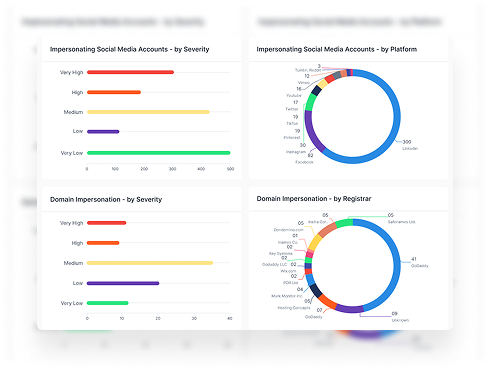
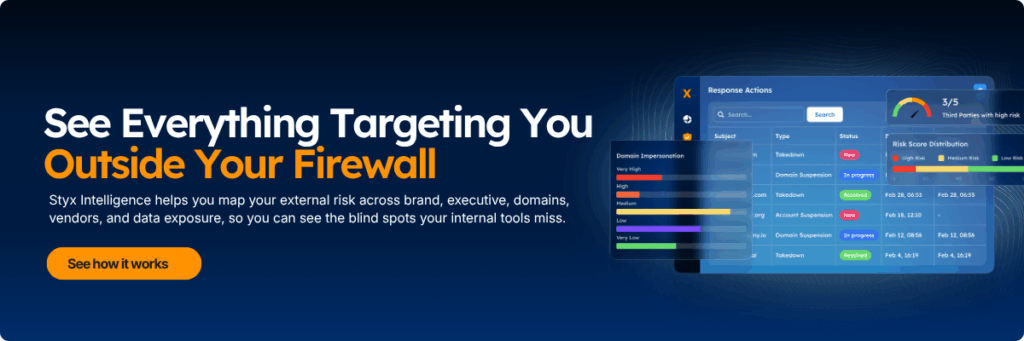
Styx Intelligence helps you by automatically monitoring for the signs that can lead to MFA fatigue, such as exposed credentials, stealer logs, fake sign-in pages, and lookalike domains.
Instead of manually searching breach sites, forums, Telegram channels, dark web sources, or lookalike domains, Styx Intelligence brings those findings into one platform automatically.
Your team does not have to hunt across different sources to see what is exposed.
Styx can surface signals such as:
- Employee email and password pairs found in breach data
- Credential snippets from combo lists and dumps
- Stealer logs tied to corporate accounts
- Session cookies or tokens from infected devices
- Mentions of your domain in leak discussions
- Fake sign-in pages collecting employee credentials
- Lookalike domains that could support phishing
- Executive credentials or personal exposure that could be used in targeted attacks
Styx helps teams handle the exposures that can lead to MFA fatigue through one workflow:
| Step | What Styx shows | Why it matters for MFA fatigue |
| Visibility | Exposed credentials, stealer logs, fake sign-in pages, lookalike domains, impersonated profiles, exposed sensitive data, and other external findings. | Your team can identify what already exists outside the company before attackers use it. |
| Monitoring | New findings and changes over time, such as a new credential dump, new stealer-log hit, new phishing page, or new lookalike domain. | Your team does not have to wait for an employee to report repeated MFA prompts. |
| Prioritization | Context that helps rank findings by urgency, such as whether a domain is live, has mail records, hosts a phishing page, or whether a credential includes an email and password. | Your team can focus first on findings that are more likely to lead to account access. |
| Remediation | Takedown for phishing pages, fake sites, impersonation, rogue apps, and brand abuse. For data leakage, Styx alerts the team so they can reset passwords, revoke sessions, check affected devices, or escalate internally. | Your team can act on impersonation assets where takedown applies, and respond to exposed data where internal action is needed. |
For MFA fatigue, timing matters.
If your team finds exposed passwords, stealer logs, fake sign-in pages, and lookalike domains earlier, you can reset credentials, revoke sessions, investigate affected devices, or start takedown before those exposures are used in login attempts.
Want to find exposed credentials before attackers use them? Book a demo to see how Styx Intelligence automatically surfaces leaked passwords, stealer logs, fake sign-in pages, lookalike domains, and impersonation risks in one platform.